How to Restore a Wallet From a Seed Phrase: Step by Step
Читать по-русски: Как восстановить кошелёк по сид-фразе: пошагово
A seed phrase, also called a recovery phrase (MetaMask says Secret Recovery Phrase), is not a password for an app: it is the wallet itself. Every private key and address is calculated from its words, so you can restore the wallet in any compatible app or hardware device, even if the old phone is lost or broken. Enter the same words in the same order and the wallet finds your funds on the blockchain again. This guide covers the general steps for BIP39 wallets, the exact steps in popular wallets, what to check if the balance shows zero, and which phrases follow other rules. New to the topic? Start with what a seed phrase is and how it works.
Before You Restore
The words are almost certainly English: of the ten official BIP39 lists, wallets nearly always use the English one, with 2048 words. If a handwritten word is hard to read, compare it with the BIP39 word list: in the English list the first four letters identify every word.
- Number of words. A BIP39 phrase has 12, 15, 18, 21 or 24 words. With 20, 25 or 33 words you have a different format: see the phrases that are not BIP39, below.
- Passphrase. If you added a passphrase, the so-called 25th word, when the wallet was created, you need it again: without it, the same words open a different, empty wallet.
- Origin. Note which app or device created the wallet. It decides the phrase format and the derivation path.
- Device. Restore on your own phone or computer, one without suspicious software.
How to Restore a Wallet From a Seed Phrase: Six Steps
- Install the wallet from an official source. Get the app or browser extension through the developer’s website or the official app store, and check the publisher’s name: fake wallet apps turn up in stores too. A hardware wallet should be new or reset.
- Choose to restore. Look for an option such as “Import”, “Restore” or “I already have a wallet”, not “Create a new wallet”. If the app asks how many words your phrase has, pick that number.
- Enter the words in order. Use lowercase, exactly as written. The wallet checks each word against the list and verifies the checksum, so it usually rejects a typo or two swapped words.
- Add the passphrase, if you set one. It must match exactly, capital letters and spaces included; see how the BIP39 passphrase works.
- Set a new PIN or password. It protects the wallet on this device only and has nothing to do with the seed phrase.
- Check the addresses and the balance. Make sure the wallet shows familiar addresses and the balance you expect, and compare them with old records, such as the withdrawal history on an exchange. Syncing can take a few minutes.
Hardware and Software Wallets
In a phone or desktop wallet, you type the phrase on that device’s keyboard. On most hardware wallets you enter the words on the device itself, so they never pass through the computer, and you set the PIN there too. The official companion app then finds the accounts; for some coins you add them by hand.
Keep two things in mind. Restoring does not move a wallet, it adds one more way in: an old phone or device with the same phrase still controls the funds. And a hardware wallet does not make a phrase safe if that phrase was kept on a phone or typed into a computer before. For large amounts, create a new phrase on the device and move the funds to it.
Restore Steps for Popular Wallets
Menu names change between app versions. The steps below follow each developer’s own help pages and apps as of October 2026, linked in every section, and the table shows what each wallet accepts.
| Wallet | Type | Accepts | BIP39 passphrase |
|---|---|---|---|
| MetaMask | Extension, mobile | 12 to 24 words, English only | No |
| Trust Wallet | Mobile, extension | 12 or 24 words | Not documented |
| Phantom | Extension, mobile | 12 or 24 words | Not documented |
| Coinbase Wallet | Mobile, web, extension | 12 words | Not documented |
| Exodus | Desktop, mobile | 12 words | Not documented |
| Ledger | Hardware | 12, 18 or 24 words | Yes, set on the device |
| Trezor | Hardware | BIP39 12 or 24 words, SLIP-39 shares | Yes |
| Electrum | Desktop, Android | Electrum seeds, BIP39, SLIP-39 (desktop) | Yes |
| BlueWallet | Mobile | BIP39 | Yes |
| Sparrow | Desktop | BIP39 12 to 24 words, SLIP-39 shares | Yes |
If your wallet had a passphrase, restore it in a wallet that takes one: MetaMask has no passphrase field, and Trust Wallet, Phantom, Coinbase Wallet and Exodus do not document one, so they can only open the wallet that has no passphrase.
MetaMask
Steps from MetaMask’s guide to restoring a wallet from the Secret Recovery Phrase, the same in the browser extension and the mobile app:
- On a fresh install, choose I have an existing wallet, then Import using Secret Recovery Phrase. If the first button is not there, the second one is on the welcome screen itself. The Google, Apple and Telegram buttons are for wallets created with social login.
- Enter the words, one per box, in lowercase and without spaces.
- Set a new password. It unlocks MetaMask on this device only and cannot recover the wallet.
- Add what is missing. MetaMask adds accounts in order and stops at the first one it finds unused, so add later accounts by hand from the account menu, then re-add custom networks and tokens (missing accounts).
MetaMask accepts English phrases only and has no field for a BIP39 passphrase. For Ethereum and other EVM networks it uses one path, m/44’/60’/0’/0, so Ledger Wallet accounts after the first do not appear (importing from other wallets). Since October 2025 each account also holds a Solana address, and since December 2025 a Bitcoin address (Bitcoin on MetaMask), the latter Native SegWit only. With Backup and sync turned on, the default, account names and contacts come back, but accounts added with a private key or a JSON file and hardware wallet accounts do not: they need backups of their own. To add a second phrase to a MetaMask that already has a wallet, open the account selector and choose Add wallet → Import a wallet.
Trust Wallet
Steps from Trust Wallet’s guide to restoring with a recovery phrase, in the mobile app:
- Choose I already have a wallet, then Secret Phrase.
- Confirm the safety checklist and choose Multi-coin wallet.
- Name the wallet, enter the words and tap Restore wallet.
- Set a new passcode. It controls access to the app only.
Trust Wallet documents 12- and 24-word phrases. It restores every supported coin, but some tokens may have to be turned on again: balances below 0.01 are hidden by default, and custom tokens are added back by contract address (tokens missing after recovery). Wallets imported with a private key do not come back with the phrase. Trust Wallet’s open-source wallet core derives Solana at m/44’/501’/0’, while Phantom defaults to m/44’/501’/0’/0’, so one phrase can show different Solana addresses in the two apps.
Phantom
To restore a phrase as the main wallet, Phantom has to be on its welcome screen: if you are signed in, make sure the wallet already there is backed up, then reset or reinstall the app. To add a phrase next to an existing wallet instead, choose Add Account → Import Recovery Phrase from the profile menu. Steps from Phantom’s guide to importing a wallet:
- Extension: choose I Already Have a Wallet → Import Recovery Phrase. Mobile: choose More Options → Import Recovery Phrase.
- Enter the 12 or 24 words and confirm with Import Wallet (extension) or Import (mobile).
- In the extension, create a password.
Phantom restores the accounts with on-chain activity, oldest first; add empty ones by hand. It scans several derivation paths: for Solana m/44’/501’/n’/0’ by default, plus m/44’/501’/n’ and the deprecated m/501’/n’/0/0 when those show activity; for EVM networks m/44’/60’/0’/0/n; for Bitcoin m/84’/0’/0’/0/n and m/86’/0’/0’/0/n. Other phrases or private keys you imported into Phantom do not come back with the main wallet. Phantom ended Sui support on September 24, 2026: Sui assets no longer show there, but they are still on the Sui chain and open in a Sui wallet with the same phrase.
Coinbase Wallet
Coinbase Wallet is Coinbase’s self-custody app. It was called the Base app from 2025 until it took back the Coinbase Wallet name in 2026, and some help pages still use the Base name. An account on the Coinbase exchange has no seed phrase. Steps from Coinbase’s help on recovering access to the wallet and managing wallets:
- On a fresh install, tap More options → Import Recovery Phrase. In an app that already has a wallet, tap your avatar → Add Wallet → Import Wallet → Import Recovery Phrase.
- Confirm the safety statements, enter the 12 words in order and tap Import.
- Turn on Solana and Bitcoin with Enable Now, if you hold them.
Coinbase documents 12-word phrases only. The app imports every wallet linked to the phrase, up to 10. Some networks are no longer shown, among them Dogecoin, Litecoin, Bitcoin Cash, XRP, Stellar and any custom network: the funds stay at the same addresses, and Coinbase suggests importing the phrase into a wallet that supports them (unsupported assets). A cloud backup in iCloud or Google Drive is an encrypted copy of the phrase, locked with a password you chose: if the password is lost, so is that backup, which is why the written phrase still matters. Smart wallets are recovered with a passkey, not a phrase.
Exodus
Exodus calls its phrase the 12-word secret key, and its phrases always have 12 words. Steps from Exodus’s guide to restoring from the secret key:
- Mobile: tap the profile icon → Settings → Restore account → Secret Key (Advanced) and follow the prompts. Desktop, new install: choose Import Wallet.
- Enter the 12 words in lowercase (on mobile, four at a time) and confirm the restore.
- On the desktop, set a password. Then let balances and history resync, turn on assets that are off by default and add custom tokens back.
Restoring overwrites the wallet currently in Exodus, so back that one up first; the desktop app keeps an overwritten wallet’s data for 90 days. A 12-word phrase from another wallet shows its funds in Exodus only where the derivation paths match, and it documents no import for 24-word phrases apart from Hedera accounts, so a 24-word Ledger phrase needs a different wallet. For Bitcoin it uses m/84’/0’/0’/0/0 (SegWit), m/44’/0’/0’/0/0 (Legacy) and m/86’/0’/0’/0/0 (Taproot), and for Ethereum and other EVM networks m/44’/60’/0’/0/0 (derivation paths in Exodus). The Exodus Web3 Wallet browser extension reached the end of support on October 1, 2026.
Ledger
A Ledger takes the words on the device itself: Ledger tells you never to type the phrase into a computer, a phone, a website or its own app. Steps from Ledger’s guide to restoring from a Secret Recovery Phrase:
- Reset the device if it is already set up. A Ledger holds one phrase at a time: reset it in Settings, which needs the PIN.
- Start the setup. On the Stax, Flex and Nano Gen5, name the device and choose a PIN of 4 to 8 digits, then tap Recover access to your existing assets and Use my Secret Recovery Phrase. On the Nano S Plus and Nano X, choose Restore from recovery phrase first, then the PIN.
- Choose 24, 18 or 12 words and enter them. On a touchscreen you type the first letters and tap the suggested word; on a Nano you pick letters and words with the two buttons.
- Add your accounts again. In the Ledger Wallet app, called Ledger Live until October 2025, open Accounts, choose Add Account and pick each coin: the app scans for the accounts that belong to the phrase.
Ledger devices create only 24-word phrases. The 12- and 18-word options exist for phrases from other wallets, which Ledger does not recommend, and it warns against loading a phrase that may already be exposed, and against loading a MetaMask phrase onto a Ledger at all. If you used a passphrase, set it again in the device settings after the restore. To check a written phrase without resetting anything, install the Recovery Check app from My Ledger in Ledger Wallet. Three wrong PINs in a row reset a Ledger, so the paper backup is what you rely on.
Trezor
A Trezor that already holds a wallet has to be wiped before it can load a different backup; Trezor Suite, the desktop, web and mobile app, guides you through the rest. Steps from Trezor’s recovery guides for the Safe 5 and the Model One:
- Connect the Trezor and choose to recover a wallet in Suite, then start the recovery and confirm on the device.
- Choose the number of words.
- Enter the words. The Safe 3, Safe 5, Safe 7 and Model T take them on the device itself. The Model One has no keyboard: you type the words in Suite in the shuffled order the device asks for, and Suite may also ask for words that are not in your backup. Its advanced method has you enter letters through a blind grid whose layout only the device screen shows.
- Set a PIN. Suite then looks for accounts with a balance or history on the networks you have turned on; more networks can be turned on in Suite’s settings.
A Trezor restores BIP39 phrases and SLIP-39 backups. The Safe 5, Safe 7 and the Safe 3 since June 2024 create a 20-word SLIP-39 backup by default, which only a SLIP-39 wallet can restore. A 24-word phrase from another wallet can be loaded, but Trezor recommends creating a new wallet and sending the funds to it instead. For a passphrase, turn on Use Passphrase wallets under Settings → Device, then open a passphrase wallet from the wallet list; Trezor offers to take the passphrase on the device so it never touches the computer. To test a backup without wiping anything, use Check backup under Settings → Device: the device compares the words with its stored backup and changes nothing.
Electrum
Electrum restores its own seeds, BIP39 phrases and, on the desktop, SLIP-39 shares. Its default seed type is Electrum, so it accepts a BIP39 phrase only after you switch the type. Steps for Electrum 4.8 on the desktop, from its seed documentation and the wizard in its source code:
- Open the wizard. It starts on first launch, after the terms of use, or from File → New/Restore. Name the wallet file, then choose Standard wallet and I already have a seed.
- Click Options and set the seed type: Electrum, BIP39 seed or SLIP39 seed. Tick Extend this seed with custom words if the wallet had a passphrase.
- Enter the words. For a BIP39 phrase, Electrum warns about a failed checksum but still lets you continue, so a typo here restores an empty wallet.
- Choose the script type and derivation path (BIP39 and SLIP-39 only). Detect Existing Accounts scans the known paths online; otherwise pick legacy (p2pkh), p2sh-segwit or native segwit (p2wpkh), the default, and edit the path if you need to.
- Set a wallet password. It encrypts the wallet file and is not the seed extension.
There is no Taproot script type in this step, so a BIP86 wallet from BlueWallet or Sparrow does not restore in Electrum. Electrum scans 20 receiving addresses by default; to look further, run wallet.change_gap_limit(50) in the Console tab, which you can turn on in the View menu. The Android app follows the same steps, but its seed types are Electrum and BIP39 only.
BlueWallet
BlueWallet, a mobile Bitcoin wallet, finds the address type for you. Steps from its guide to importing a wallet:
- Tap + → Add Wallet → Import wallet, then paste or type the words.
- If the wallet had a passphrase, open the ⋯ menu and turn on Passphrase; turn on Search accounts there too if you used more than the first account.
- Tap Import and choose the wallet BlueWallet discovered.
By default, BlueWallet checks the first account on the BIP44, BIP49, BIP84 and BIP86 (Taproot) paths, and it treats a path as used only if its first receiving address has history. If your wallet still does not appear, tap Use custom derivation path on the discovery screen (custom derivation).
Sparrow
Sparrow, a desktop Bitcoin wallet, asks for the script type before the words. Steps for Sparrow 2.5, the current version:
- Choose File → New Wallet, name it and click Create Wallet.
- Set the Script Type to match the wallet you are restoring: Legacy (P2PKH), Nested Segwit (P2SH-P2WPKH), Native Segwit (P2WPKH), the default, or Taproot (P2TR).
- Click New or Imported Software Wallet → Mnemonic Words (BIP39), choose the number of words and type them until Sparrow shows Valid checksum. Tick Use passphrase? if the wallet had one.
- Click Create Keystore → Import Keystore, then Apply, and choose whether to set a password.
Not sure of the script type? File → Import Wallet with the mnemonic option can discover it while online. Sparrow refuses Electrum seeds, telling you to import the Electrum wallet file instead, and restores SLIP-39 backups through Mnemonic Shares (SLIP39). The gap limit, 20 by default, is under Settings → Advanced (Sparrow FAQ).
The Phrase Is Accepted but the Balance Is Zero
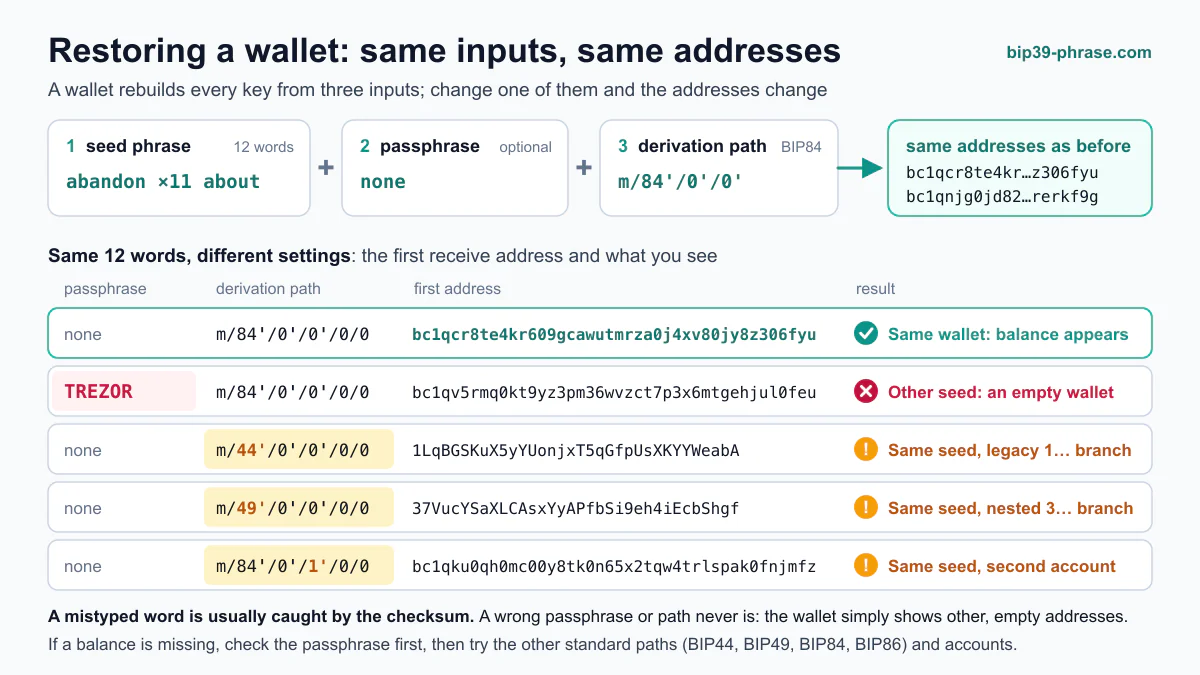
If the words are right, the funds are most likely still there: the wallet has opened a different branch of the same key tree, or it is looking at the wrong network. Look up an old address in a block explorer. If it still holds a balance, the problem is in the wallet’s settings. Check these in order.
Derivation Path and Address Type
The same words give different addresses on different derivation paths. Bitcoin has four standards: BIP44 (addresses that start with 1), BIP49 (3), BIP84 (bc1q) and BIP86 (Taproot, bc1p), and a wallet that does not support yours will not find those coins. Restore with the address type you see in your old records. Derivation paths explained shows how the paths work, and the seed phrase to private key converter shows how one test phrase gives different addresses.
Account Number
Under BIP44, a wallet checks accounts in order and stops at the first account without transactions. Ethereum apps also number accounts differently: the second account in MetaMask and the second account in Ledger Wallet sit on different paths. If the funds were not in the first account, add the next ones by hand.
Passphrase
Any passphrase, even one with a typo or an extra space, opens its own valid but empty wallet, and you see no error. Try every variant you might have used, and try no passphrase at all.
Network and Tokens
On Ethereum and compatible networks, such as BNB Smart Chain, Polygon and Arbitrum, your address is the same, but each network has its own balance, and the wallet shows only the networks it has turned on. Some tokens have to be added by hand. USDT on TRON sits on a separate address that starts with T, and the wallet shows it only if it supports TRON. Apps also drop networks: Coinbase Wallet no longer shows Dogecoin or Litecoin, and Phantom no longer shows Sui. The coins are still on their chains, and a wallet that supports the network shows them with the same phrase.
The 20-Address Gap Limit
BIP44 tells wallets to stop scanning after 20 unused addresses in a row, the gap limit. If you created many receiving addresses and only some of them were paid, part of the funds can lie beyond that limit. Some wallets, such as Electrum, let you raise it.
Phrases That Are Not BIP39
Not every phrase made of English words is a BIP39 phrase. These formats restore only in wallets that support them:
| Format | Words | How to recognize it | Where to restore |
|---|---|---|---|
| Electrum | Usually 12 | Created in Electrum; words from the same English list, but no BIP39 checksum | Electrum, as an Electrum seed |
| SLIP-39 (Shamir) | 20 or 33 | Its own list of 1024 words; all shares of one backup start with the same two words | Trezor, or a wallet with SLIP-39 support such as Electrum |
| TON | 24 | Words from the BIP39 list, but its own check and its own key derivation | A TON wallet |
| Monero | 25 (sometimes 13 or 16) | The classic phrase uses its own list of 1626 words | A Monero wallet |
Since version 2.0, Electrum creates phrases in its own versioned format rather than BIP39, and BIP39 wallets usually reject them. Newer Trezor models create 20-word SLIP-39 backups by default (see Trezor above), which an ordinary BIP39 wallet cannot restore. A BIP39 wallet rejects a classic 24-word TON phrase or opens an empty wallet from it; for new wallets, TON’s documentation recommends a 12-word BIP39 phrase. See the guides to the TON seed phrase format and the Monero seed phrase for those coins.
After You Restore
- Check every account and network you used: Bitcoin addresses of each type, Ethereum accounts, tokens.
- Decide whether the phrase is compromised. If you ever typed it into a website, sent it to “support”, kept a photo of it in the cloud, or someone else saw it, assume strangers know it. A new PIN does not help. Create a new wallet with a new phrase, preferably on a hardware device, and move everything to it, starting with a small test amount. To move tokens off the old address you need the network’s own coin (ETH, BNB, TRX) for the fee.
- Refresh your backup. Paper or metal, offline, in a safe place: see how to store a seed phrase.
Safety Rules
- Enter the phrase only into the wallet app itself or into a hardware wallet. No website, bot or form for a “balance check”, “wallet sync” or “airdrop claim” needs your words.
- Wallet and exchange support never asks for your seed phrase. Anyone who does is a scammer.
- Do not photograph the phrase or send it by messenger or email.
- The converter on this site shows how words become keys and addresses.
Frequently Asked Questions
Can I restore a wallet without the seed phrase?
Only if another backup survives, such as a wallet file with its password, or the private keys. The developers of non-custodial wallets do not store your phrase and cannot recover it. If the wallet is still open on an old device and the app can show the phrase, write it down now. If your funds were on an exchange, you never had a seed phrase: the exchange restores access to the account. Our guide on where to look for lost wallet backups lists the places to search.
The wallet says the phrase is invalid. What now?
First make sure it is a BIP39 phrase at all (see the table above). If it is, look for a typo, a similar word or two swapped words: our guide on how to fix seed phrase errors walks through each case.
Can I restore a wallet from one app in another?
Yes, if both support BIP39 and the networks you need. The derivation path may differ: choose the same address type in the new app or add the accounts you need, and if it cannot do that, use a wallet that supports the right path.
Does restoring on a new device remove the wallet from the old one?
No. The old phone or device keeps full access with the same phrase. To cut it off, reset or wipe that device, and if you think someone else may have the phrase, move the funds to a wallet with a new one.
How can I check that my phrase is written down correctly?
While the new wallet is still empty, delete it from the app and restore it from your written copy: if it shows the same first address, the words are right. Hardware wallets can check a backup without wiping anything: Trezor has Check backup in Trezor Suite, and Ledger has the Recovery Check app. You can rehearse the whole process with a test phrase from the seed phrase generator, as long as you never send funds to it.