How to View Your Seed Phrase in MetaMask, Trust and More
Читать по-русски: Как посмотреть сид-фразу в MetaMask, Trust Wallet и других
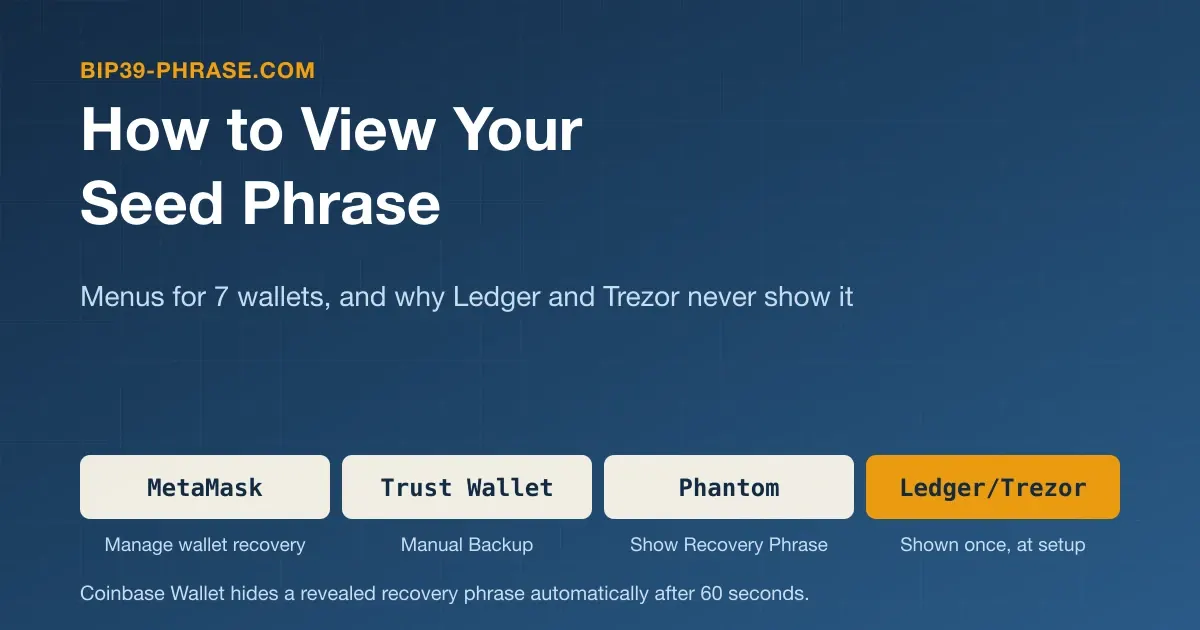
A software wallet shows your seed phrase in its own menus, as long as it is still installed and unlocked on one of your devices: the MetaMask extension under Settings → Security and password → Manage wallet recovery, the Trust Wallet app under the wallet’s ⋯ menu → Manual Backup, Phantom under Settings → Security & Privacy → Show Recovery Phrase. Most ask for your password, PIN or Face ID first. Ledger and Trezor hardware wallets display the words only once, when the backup is created, and never again. This guide covers current steps for seven wallets, checking a hardware wallet backup, wallets that never showed a phrase, and revealing one safely. New to the topic? Start with what a seed phrase is.
Before You Reveal the Phrase
Anyone who sees the words can empty the wallet from any device, so prepare first:
- Pick a private place. Nobody behind you, no camera facing the screen, no screen sharing or remote-support session running.
- Write by hand. Copy the words onto paper in numbered order. Skip screenshots, photos and the Copy button: photos can sync to cloud libraries, and a clipboard can be read by other apps.
- Type it nowhere. Viewing your phrase never involves entering it on a website, in a form or in a chat.
- Know what it covers. Imported private keys and hardware wallet accounts are not part of the phrase.
Where Each Wallet Shows the Phrase
Steps follow each developer’s help pages as of October 2026 and the source code of MetaMask extension 13.52, MetaMask Mobile 8.15, Electrum 4.8.2 and BlueWallet 8.0.2.
| Wallet | Where the phrase is | What you need |
|---|---|---|
| MetaMask extension | Settings → Security and password → Manage wallet recovery | Two-question quiz, password |
| MetaMask mobile | Settings → Security and privacy → Reveal Secret Recovery Phrase | Two-question quiz, password |
| Trust Wallet mobile | Wallet name → ⋯ → Manual Backup | PIN or password |
| Trust Wallet extension | Wallet selector → Manage Wallets | Unlocked extension |
| Phantom | Profile avatar → Settings → Security & Privacy | Unlocked app |
| Coinbase Wallet | Settings → the wallet → Show Recovery Phrase | Face ID or passcode |
| Exodus mobile | Profile icon → Settings → Backups | Unlocked app |
| Exodus desktop | Settings → Backup | Wallet password |
| Electrum desktop | Wallet → Seed | Wallet password, if set |
| BlueWallet | Wallet → ⋯ → Export/Backup | Biometrics, if turned on |
| Ledger, Trezor | Never shown again | A check on the device |
Step-by-Step: View the Phrase in Each Wallet
MetaMask
MetaMask calls it the Secret Recovery Phrase (SRP); if you added several, you pick which one to reveal. The paths come from MetaMask’s guide to revealing your Secret Recovery Phrase; the button names come from the current extension and mobile app, which show the words after a tap rather than the hold button the guide describes.
Extension
- Click the menu icon on the home screen, then Settings → Security and password → Manage wallet recovery.
- Pick the phrase and click Reveal (if your first phrase was never backed up, it shows Backup instead).
- Answer the two security questions, enter your password and click Continue. If you turned on biometric unlock, you confirm with your passkey instead.
- Click the hidden phrase, marked Tap to reveal, to show the words.
Mobile
- Tap the menu icon at the top right, then Settings → Security and privacy.
- Tap Reveal Secret Recovery Phrase and select the phrase.
- Answer the two security questions, enter your password and tap Next.
- Tap the hidden phrase, marked Tap to reveal, to show the words.
The account selector leads there too: three dots next to an account → Account details → Secret Recovery Phrase. On Android the mobile app blocks screen capture of this screen; on iOS it warns you after a screenshot.
Trust Wallet
Steps from Trust Wallet’s guide to backing up your recovery phrase:
Mobile
- Unlock the app with your PIN or biometrics.
- Tap the wallet name at the top of the main screen, then the three dots (⋯) next to the wallet.
- Select Manual Backup and enter your PIN or password to show the phrase (12 words for a wallet created in Trust Wallet).
Browser extension
- Unlock the extension and click the wallet selector, the wallet name with the down arrow.
- Select Manage Wallets, then the backup option next to the wallet (Back up your Secret Phrase in Trust Wallet’s guide), then Show.
- After writing the words down, select Proceed and pick them in order to confirm your copy.
Trust Wallet says it disables screenshots, so have paper ready.
Phantom
Steps from Phantom’s article on viewing your recovery phrase, the same in the app and the extension:
- Tap or click your profile avatar in the upper left.
- Open Settings → Security & Privacy.
- Choose Show Recovery Phrase.
A wallet created with a Google or Apple account still has a recovery phrase, shown the same way. Private keys you imported into Phantom are not covered by it, so export those too. For Ledger accounts, Phantom shows neither a phrase nor keys.
Coinbase Wallet
This is Coinbase’s self-custody app, not the exchange, which holds keys for you; some help pages still call it the Base app. Steps from Coinbase’s help on the wallet recovery phrase:
- Open Coinbase Wallet and select Settings.
- Select the wallet you want to back up.
- Select Show Recovery Phrase and authenticate with Face ID or your passcode.
- Select Continue to see the 12 words.
The phrase hides itself after 60 seconds. Each recovery phrase wallet in the app has its own phrase, so repeat this for every one. Smart wallets and email or social login wallets work differently; see below.
Exodus
Exodus calls it the 12-word secret key; its phrases always have 12 words. Steps from Exodus’s guide to the 12-word secret key:
Mobile
- Tap the profile icon, then Settings → Backups → Secret Key (Advanced).
- The first time, go through the seven safety slides.
- Press and hold Press and Hold to Reveal.
Desktop
- Click the Settings icon in the top right corner and open the Backup tab.
- Follow the password prompts.
- Tick the risk box, choose to view the secret key, then tick the box that shows it.
Exodus Mobile, and Exodus Desktop on Windows and macOS, block screenshots and screen recordings while the key is visible. If Exodus Mobile crashes on launch, do not uninstall it: turn on its Recovery Mode (on iOS in the Settings app under Apps → Exodus, on Android by long-pressing the app icon) and open Recover Secret Key.
Electrum
Steps for Electrum 4.8.2 on the desktop, checked against its source code:
- Open the wallet and choose Wallet → Seed, or click the seed icon in the status bar.
- Enter the wallet password, if it has one.
- Write down the words under “Your wallet generation seed is”. Custom words you added appear below as the seed extension.
The Seed item is grayed out for watch-only, imported-key and hardware wallet files, which have no seed. On Android, tap the wallet name at the top, then Wallet details → Tap to show seed. Seeds created in Electrum use its own format, not BIP39, which matters when you move one to another app: see Electrum seed vs BIP39.
BlueWallet
Steps from BlueWallet’s guide to backing up a wallet:
- Open the wallet from the home screen.
- Tap the ⋯ menu in the top-right corner to open Wallet details.
- Scroll down and tap Export/Backup.
- Write down the words under Create a manual backup.
The QR code above the words holds the same phrase, so keep it out of photos too. Each wallet has its own backup: export every one.
Why Ledger and Trezor Never Show the Phrase Again
A hardware wallet is built to keep the seed inside the device. Ledger’s support says the 24-word phrase is only displayed once, during setup, and Trezor’s says the device will only show you your wallet backup once. Apps you connect to them cannot show it either. Other makers differ: the BitBox02, for one, can show its words again on its own screen after you enter the device password. More in hardware wallets explained.
What you can do is check your paper copy. Neither check displays the words: you enter yours, and the device tells you whether they match.
Ledger: Recovery Check
- In Ledger Wallet (formerly Ledger Live), click the Profile icon in the top-right corner and select My Ledger.
- Connect and unlock the device, then install Recovery Check from the app catalog.
- Open it on the device, choose 12, 18 or 24 words and enter your words.
- Phrase is correct means your copy is right. Uninstall the app afterward; it is large.
Recovery Check cannot verify a passphrase. If you lost the phrase but know the PIN, Ledger advises moving the funds out, resetting the device and setting it up with a new phrase.
Trezor: Check Backup
- Open Trezor Suite, connect the device and enter your PIN.
- Click the gear icon and select Device.
- Under Wallet backup, click Check backup, tick I understand and click Start.
- Enter your words on the Trezor; it compares them with the stored backup.
These steps follow Trezor’s guide for the Safe 5; other models have the same check, but on the Model One you enter the words in the order its screen asks for, not the written order. Trezor recommends it before wiping the device and before every firmware update.
Wallets That Never Showed You a Phrase
Some wallets let you skip the words at setup:
- Social login. A MetaMask wallet created with Google, Apple or Telegram opens with that login plus a password, and the account still has an SRP you can reveal as above (in the mobile app, through Manage recovery methods under Security and privacy). Write it down: if you lose the password, MetaMask cannot restore the wallet, but a saved phrase still gets you in. Phantom wallets created with Google or Apple also have a phrase. Coinbase Wallet’s email or social login wallets come back when you sign in again.
- Passkey wallets. Coinbase Wallet’s smart wallets use a passkey, such as an Apple or Google passkey, instead of a phrase. Coinbase warns that one cannot be recovered if you lose the passkey and no email or social sign-in is attached, so add one. Trust Wallet’s passkey-based Swift wallet no longer takes new users, and Trust Wallet asks owners to move their assets to a standard wallet with a recovery phrase.
- Cloud backups. Coinbase Wallet and Trust Wallet can store an encrypted copy of the phrase in iCloud or Google Drive under a password you choose, and Exodus Mobile can do it with a passkey. The phrase is still in the app, and the cloud copy is useless without its password or passkey.
Whatever replaces the phrase now guards the wallet: secure that login with two-factor authentication, keep the password safe and the passkey on more than one device.
Scams That Ask You to Show or Verify the Phrase
MetaMask’s quiz asks what it means when anyone, even a support agent, asks for your phrase; the right answer is that you are being scammed. Trust Wallet, Phantom, Exodus and Ledger all say their support will never ask for it. Watch for:
- Fake support that asks you to “verify” the wallet by reading out the words or sharing your screen while you open the backup page.
- Validation pages that claim the wallet must be validated, synced or unlocked with the phrase.
- QR codes. MetaMask and BlueWallet also show the phrase as a QR code, and a photo of it is as good as the words (QR code risks).
MetaMask’s extension scans the site in your active tab when you start a reveal and, if its phishing detection says to block that site, shows “You might be getting scammed right now” instead of asking for your password or passkey. If anyone may have seen the words, create a new wallet and move the funds. More in seed phrase scams and protecting your wallet from phishing.
Keep the paper copy offline and away from the device (how to store a seed phrase); to use it, see how to restore a wallet from a seed phrase.
Frequently Asked Questions
Can the wallet company show me my phrase if I lost it?
No. MetaMask, Trust Wallet, Exodus and Ledger say they cannot retrieve it. Only an app where the wallet is still unlocked can show it, so if an old phone or browser still has it, write the phrase down now. Two fallbacks still depend on the old installation’s data: Exodus Mobile’s Recovery Mode, and MetaMask’s vault recovery for a desktop extension that won’t unlock although you know the password.
Is it safe to copy the phrase or take a screenshot?
No. Trust Wallet says it disables screenshots, Exodus blocks them in its mobile app and on Windows and macOS, and MetaMask’s mobile app warns that they aren’t a safe way to keep the phrase. A copied phrase sits on the clipboard, where MetaMask Mobile says it stays for one minute. Write it on paper.
Is the seed phrase the same as a private key?
No. The phrase restores every account derived from it; a private key controls one account. See private key export and seed phrase vs private key.
Can I change my phrase after revealing it?
No. MetaMask says the phrase cannot be edited or changed, and Exodus says a new secret key means a new wallet. If the phrase may be exposed, create a new wallet and send your funds to it.